# IXL

## **How to Login to IXL (for Students)**

### **On Chromebook**

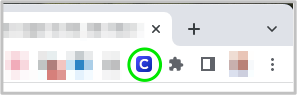
<span style="color: rgb(0, 0, 0);">Click the Clever Extension icon in the Toolbar in the upper right corner of the browser and then select IXL from the app library:</span>

![](https://kb.marymount.fr/uploads/images/gallery/2026-01/embedded-image-wye7g2aq.png)

### **Alternatively (at home)**

1. <span style="color: rgb(0, 0, 0);">Visit and bookmark our custom Marymount Paris IXL start page.</span>

#### [<u><span style="color: rgb(17, 85, 204);">https://www.ixl.com/signin/marymountfr</span></u>](https://www.ixl.com/signin/marymountfr)

<span style="color: rgb(0, 0, 0); white-space: pre-wrap;">(notice the </span>**fr**<span style="color: rgb(0, 0, 0); white-space: pre-wrap;"> ending rather than </span>**.fr**<span style="color: rgb(0, 0, 0);">)</span>

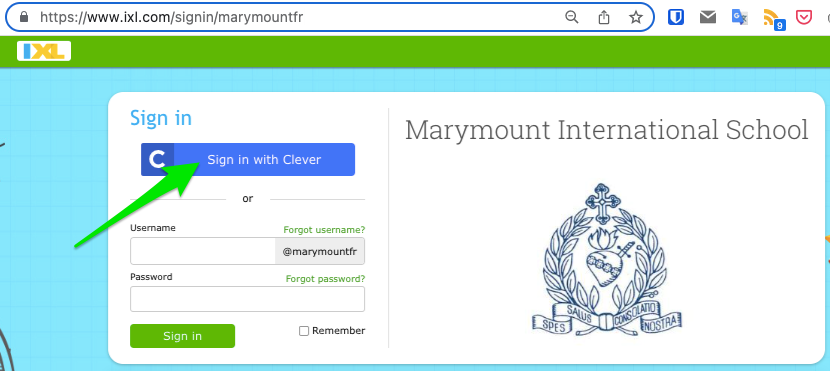
2. <span style="color: rgb(0, 0, 0);">Click on the blue ‘</span><span style="color: rgb(255, 255, 255); background-color: rgb(35, 111, 161);">Sign in with Clever</span><span style="color: rgb(0, 0, 0);">’ button:</span>

![](https://kb.marymount.fr/uploads/images/gallery/2026-01/embedded-image-peiw3cnk.png)

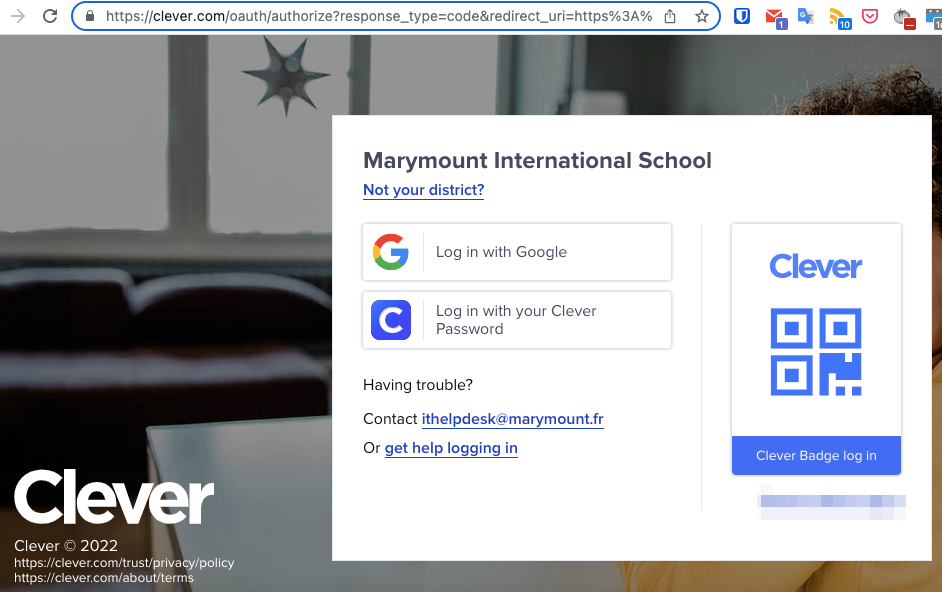
3. <span style="color: rgb(0, 0, 0);">Login with Marymount Google login if known</span>  
    **OR**<span style="color: rgb(0, 0, 0); white-space: pre-wrap;"> with an individual ‘Clever badge’ distributed separately:</span>

![](https://kb.marymount.fr/uploads/images/gallery/2026-01/embedded-image-jwsq9ubt.png)