# Transfer Student Data with Google Takeout
# Google Takeout for graduating or leaving students
Most of the our students digital work is created via our Google platform.
Google Takeout is a tool developed by Google that allows you to export and download a copy of various types of data currently stored in your Google account, such as Drive or Mail.
When leaving or graduating, students can transfer their work to their own Google account, or to their future school's Google account.
[Access Google Takeout at ](https://takeout.google.com/)[https://takeout.google.com/transfer](https://takeout.google.com/transfer)
#### Case 1 - Transfer to another Google Account
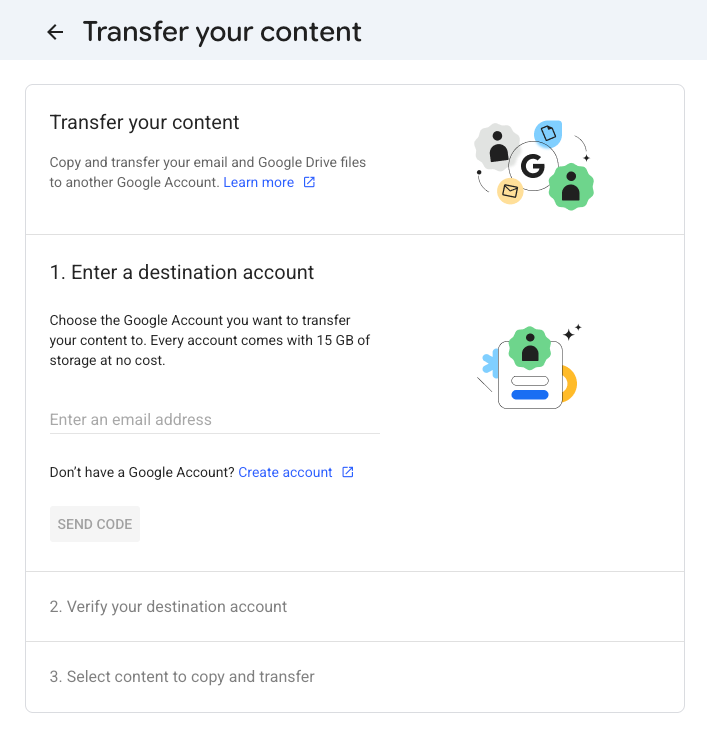
Enter your student "@students.marymount.fr" email address to sign-in.
To begin the transfer, type-in your own (non-marymount) already-existing Google account, or create one.
[](https://kb.marymount.fr/uploads/images/gallery/2026-06/fprimage.png)
send the code to confirm your identity and confirm the export.
#### Case 2 - Transfer outside of Google
You can also Download your data, instead of transfering it.
This way, Google will export your data in a way that it can be used for non-google services. (example, a Google slides presentation will be exported as a PowerPoint file, which is more common)
You can initiate a Google Takeout here:
[https://takeout.google.com/](https://takeout.google.com/ "https://takeout.google.com/")
Once logged in, Google services that have your data will be automatically selected on the Google Takeout page. you may select or deselect services as you wish.
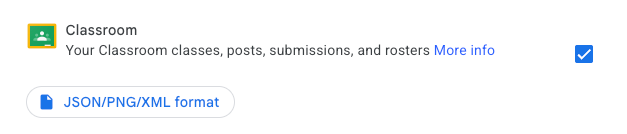
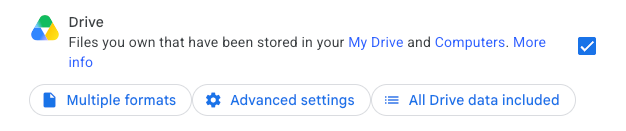
We suggest to "Deselect All", then only select:
[](https://kb.marymount.fr/uploads/images/gallery/2026-06/image.png)
[](https://kb.marymount.fr/uploads/images/gallery/2026-06/V56image.png)
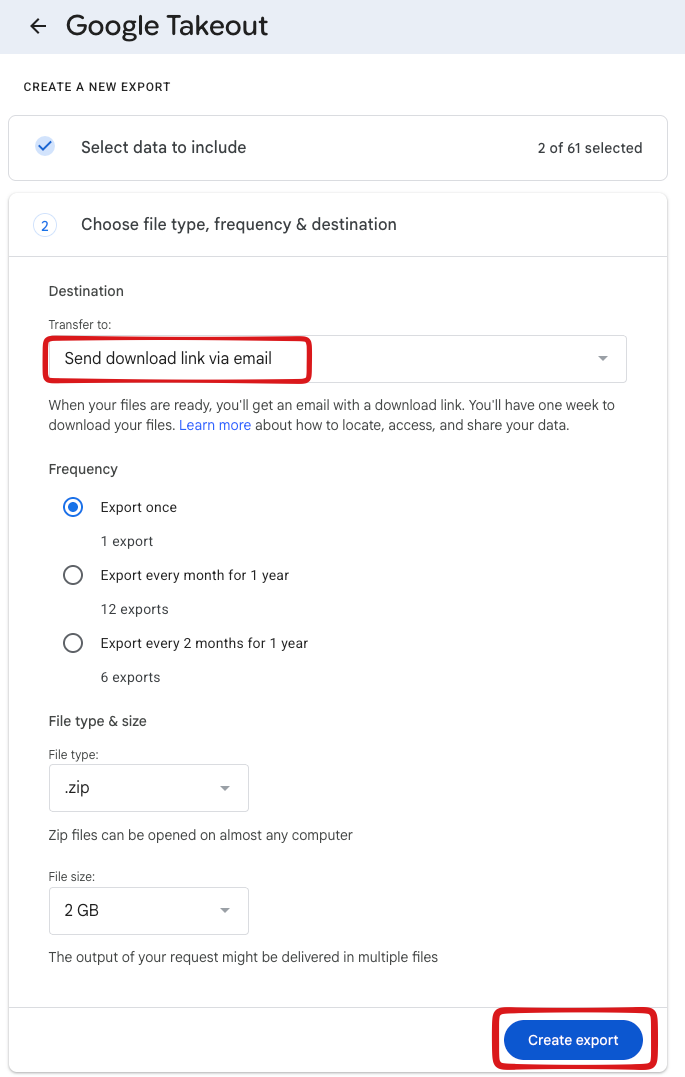
Once you have selected the services, go to **Next Step**.
The default options are the ones we advise you to select:
[](https://kb.marymount.fr/uploads/images/gallery/2026-06/HTlimage.png)
Note: your portfolios made with Google Sites are using the "Google Drive" service. you will need to enable google drive export to download your portfolio.
for further assistance, please consult the [Google Takeout manual here](https://support.google.com/accounts/answer/3024190)
##### Other student work
Student work created on other services may not be included into your Google takeout, such as:
\- Scratch projects
\- Tinkercad designs
... Other services not provided by Google
For these services, we invite you to export your work from the platforms directly.