How to access Report Cards on PowerSchool
- From the Marymount App, click on "Grades and Reports" -> Access PowerSchool
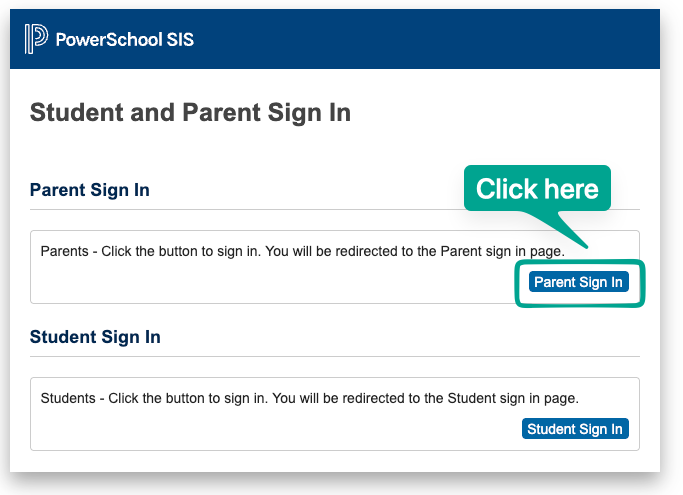
- Use the Parent SIgn In
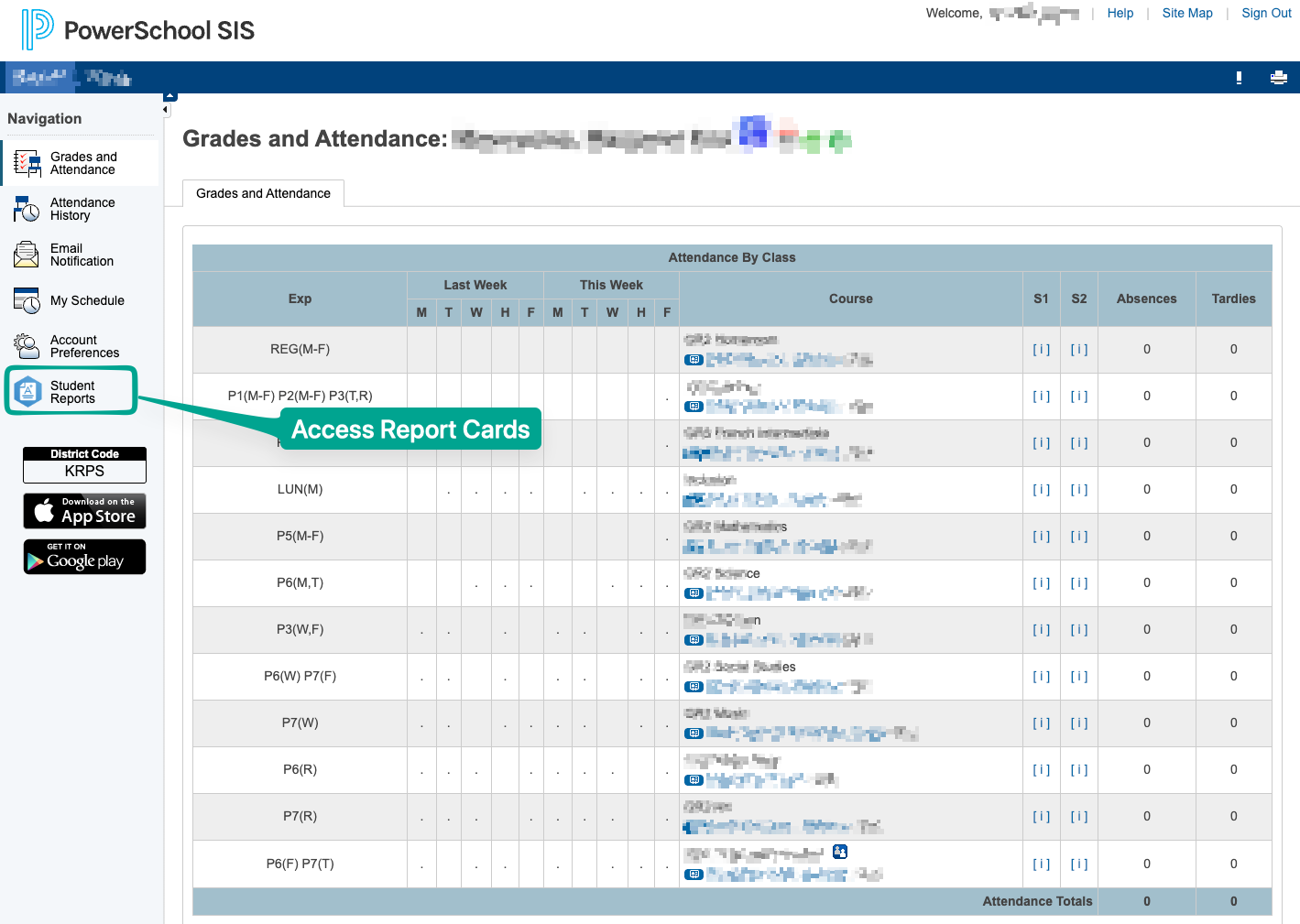
3. Select "Student Reports" from the left hand-side menu
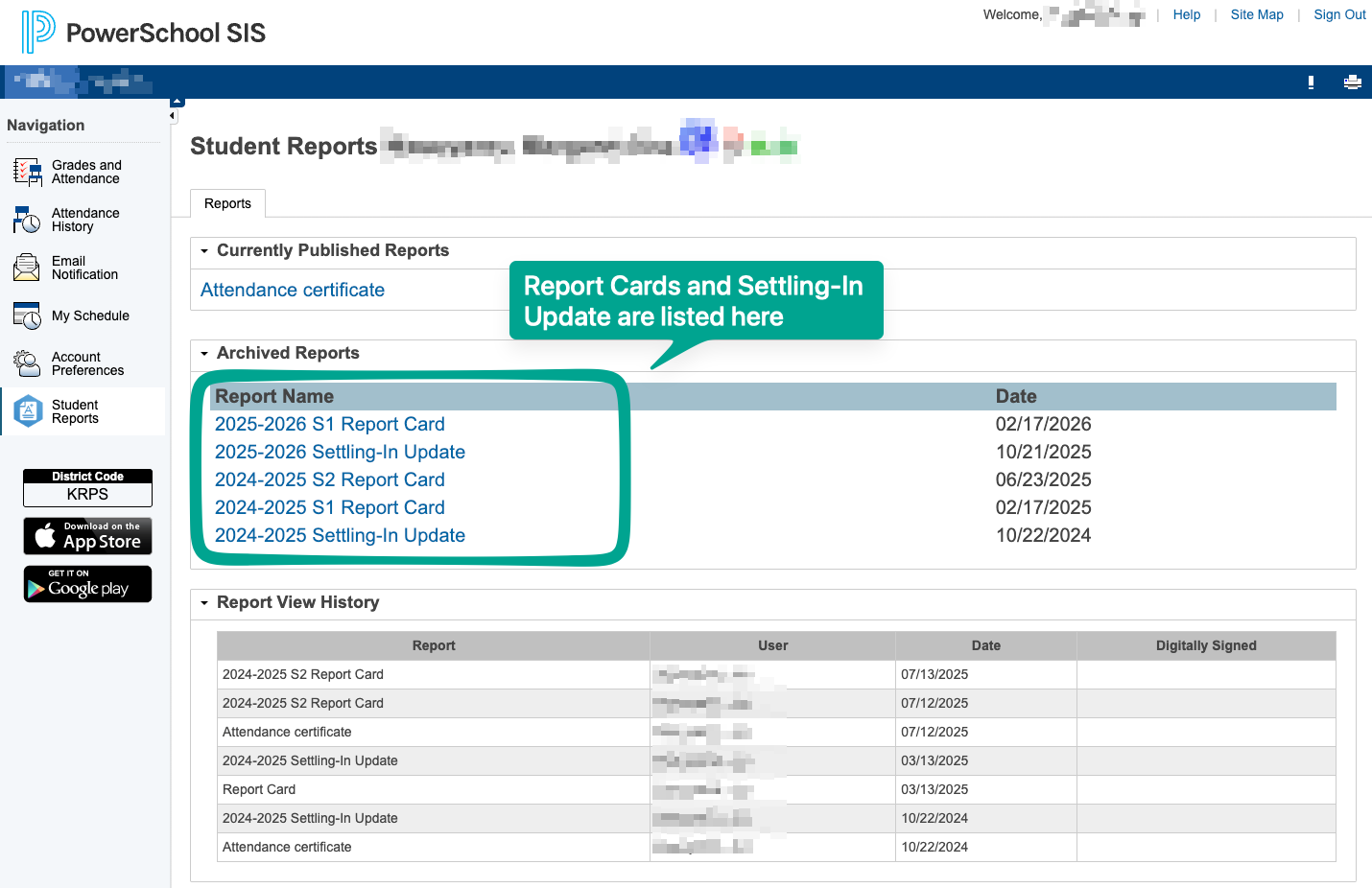
4. Select a report to view it
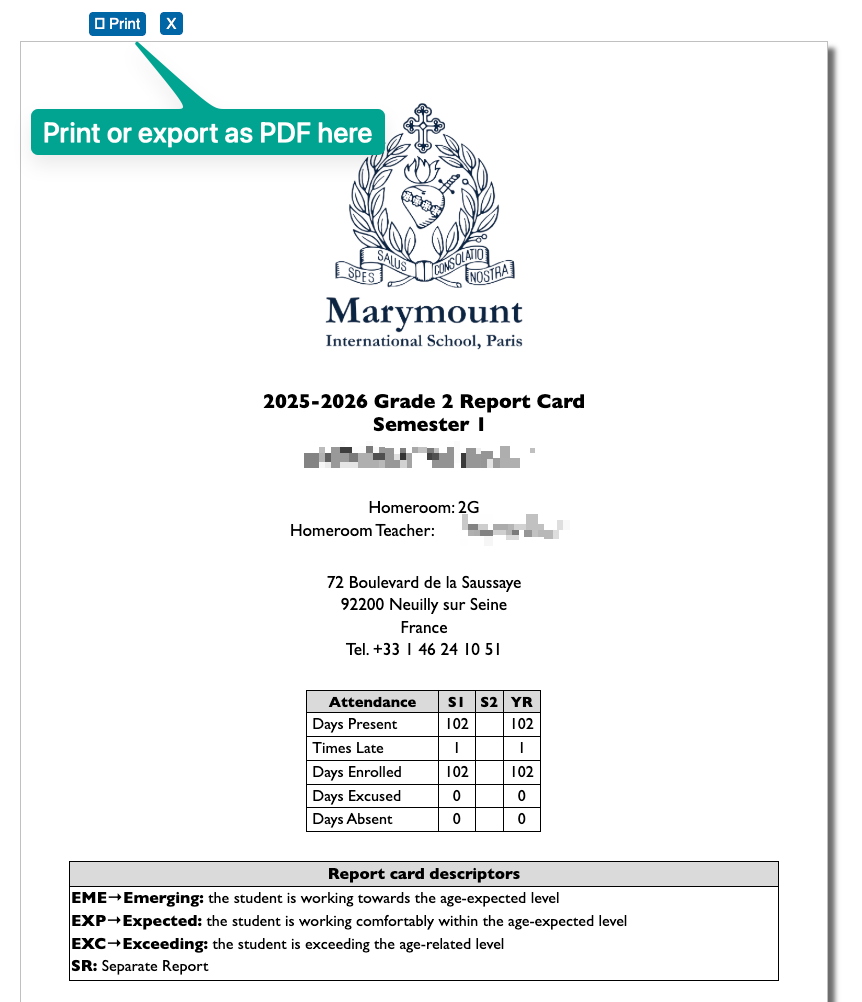
5. you can use the print button to print it, or use the feature "save as PDF" as most systems allow.